



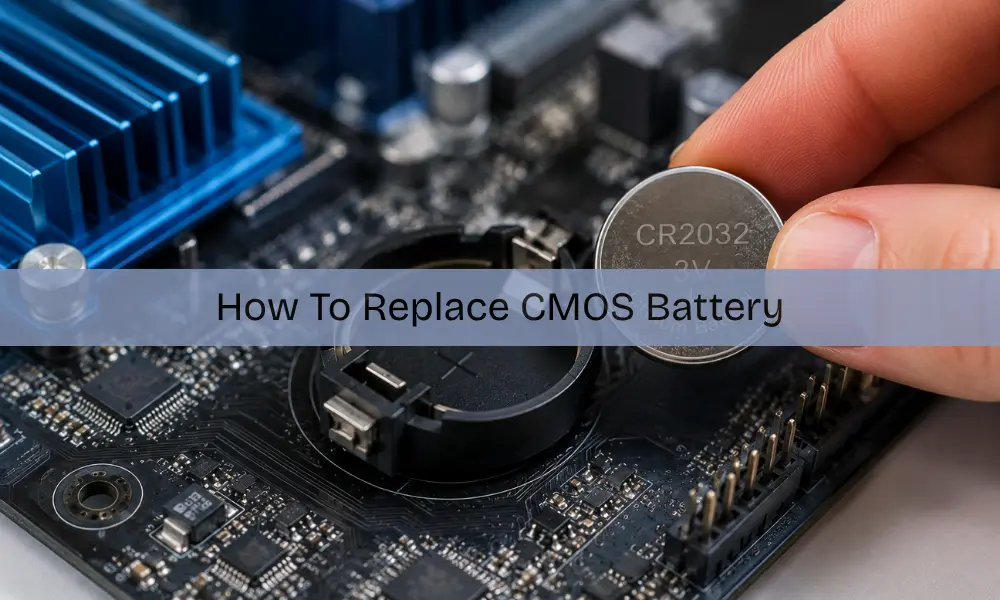
Your computer remembers the time and date even when turned off because it retains these settings between restarts through a small but crucial component called the CMOS battery. This comprehensive guide explains its function, helps you diagnose issues, and provides steps to replace it when necessary.
There are several reasons why replacement becomes essential for your computer, ranging from lost productivity to error alert messages during boot. When your Slimbook battery becomes drained and unable to maintain BIOS configuration, fortunately, the replacement process is easy.
What is a CMOS Battery?
A CMOS (Complementary Metal-Oxide-Semiconductor) battery is a small, coin-shaped battery located on your motherboard that provides power to the chip, which stores important system information, such as date, time, and hardware settings, in memory.
This CR2032 lithium coin cell typically lasts 2 to 10 years, depending on usage, and helps maintain BIOS configuration when your computer is turned off. Both desktops and laptops rely on this memory, which stores configuration data and acts as a backup power source for UEFI RAM when external power is disconnected.
What Does a CMOS Battery Do?
- The CMOS battery serves crucial functions in your computer by maintaining the system time and date through a real-time clock (RTC) that continues to run even when the computer is powered off, ensuring accurate timekeeping.
- It preserves BIOS (Basic Input/Output System) settings that are retained between restarts, preventing them from reverting to default values.
- This enables quick startups with faster boot times, ensuring your operating system loads correctly, while also supporting power management during low-power states, such as sleep and hibernation modes.
- The primary function involves continuous power to the chip that stores critical system information, including hardware configurations, boot sequence settings, and password data.
- This complementary metal-oxide semiconductor (CMOS) coin-cell on the motherboard helps the UEFI store configuration records when the system is switched off.
CMOS Battery Location
The CMOS battery is typically located on the motherboard near the BIOS chip, making it easily accessible in desktop PCs once the case is opened. For laptops, accessing the battery may require removing the bottom panel or disassembling the computer further.
To locate the battery, verify that it’s accessible and can be removed. Look for a coin cell CR2032 that may be held in place by a metal clip or bar. In some systems, you’ll locate a button covered with black protective plastic featuring red and black braided cable connections instead of the traditional coin-shaped design.
Battery Specifications
Dell desktop computers typically use a 3V lithium battery, such as the CR2032 model, which is also used in wristwatches and other small electronic devices. Remember that the flat side of the battery is always positive when installing.
CMOS Battery Failure Symptoms
Recognizing signs of a failing CMOS battery helps address issues before they become serious.
- The most common symptoms include incorrect system time and date, a clear sign when your computer consistently displays the wrong time. Often, it resets to default dates, such as January 1, 2000, after each restart, which can be verified in the BIOS setup.
- Custom settings may reset and revert to default values, indicating boot issues that can occur when a dead battery causes problems during the process, such as failure to complete the Power-On Self-Test (POST) or boot loops.
- You might encounter error messages related to CMOS during startup, hardware detection problems where components fail to detect or are incorrectly configured, and slow boot times that become noticeably longer as the system must reconfigure each time.
- Other symptoms include losing alert messages, time-of-day clock stopped errors, or dates suddenly changing from something like August 27, 2020, at 11:32 AM to January 13, 2005, at 12 AM, indicating the battery is completely dead.
If you’re experiencing these signs, checking the battery is essential.
How to Replace a CMOS Battery
Replacing your computer’s CMOS battery might seem daunting, but it’s actually a straightforward process that most users can handle with basic tools and patience.
Preparation and Tools
Before starting, gather essential supplies including a compatible CR2032 battery, small screwdriver set, and an anti-static wrist strap. Ensure you’re working in a well-lit, clean environment, preferably one that is free from carpets. Having your computer’s manual nearby helps identify specific component locations for your particular model.
Safety Precautions
Power down your computer completely and disconnect all cables, including the main power cord. Allow several minutes for residual electricity to discharge before opening the case. Ground yourself by touching an unpainted metal surface or wearing an anti-static strap to prevent damaging sensitive electronic components through static discharge.
Locating the Battery
Open your computer case and locate the motherboard – the large circuit board housing most components. The CMOS battery appears as a silver coin-sized disc, typically positioned near the BIOS chip. Some laptops may have cable-connected batteries instead of the standard coin-cell design, requiring different removal techniques.
Removing the Old Battery
Carefully examine how the battery sits in its holder before removal. Most batteries have small metal clips securing them in place. Gently push the retaining clip aside using your finger or a non-metallic tool, then lift the battery straight up. Note the positive side orientation for proper replacement.
Installing the New Battery
Insert the replacement battery with the positive side facing the same direction as the original. Press down gently until you hear a soft click, indicating the retaining clip has engaged properly. Avoid touching the battery contacts with your fingers, as oils can affect conductivity and reduce battery lifespan.
Post-Installation Setup
Reassemble your computer, reconnect all cables, and power on the system. Enter BIOS setup during startup to configure the correct date, time, and restore any custom settings. Save your changes before exiting to ensure all configurations are properly stored in the CMOS memory for future boots.
Troubleshooting After Replacement
If you continue to receive error messages following all the steps above, this is a sign of a more serious issue with your system. Computer troubleshooting most likely causes include a faulty power supply or a bad motherboard, and you may need to replace these components to resolve the issue.
CMOS Battery on Motherboard
The CMOS battery is typically located on the motherboard near the BIOS chip, making it usually easily accessible in desktop PCs once the case is opened.
For laptops, accessing the battery may require removing the bottom panel, and in some cases, further disassembling the laptop may be necessary, depending on the specific model and design.
Conclusion
In short, the CMOS battery may be small, but it plays a big role in keeping your computer running smoothly. If you notice issues such as incorrect dates, boot errors, or reset settings, replacing the battery is often the simplest solution.
For bigger problems, don’t worry, you don’t have to deal with them alone. At Smart Geeks, you’ll find expert computer repairs and reliable mobile phone repair services that save you time and stress. Ready to get your device working like new again? Contact us today!