



As someone who has spent years managing emails for multiple projects, I understand the importance of keeping your inbox up to date. Microsoft Outlook has become an integral part of our daily lives, serving as the primary platform for professionals handling calendars, contacts, and incoming emails. Whether you’re a professional juggling personal correspondence or urgent work matters, knowing how to refresh Outlook effectively is essential.
Let me share this step-by-step process to help you stay on top of your communication game.
Understanding the Refresh Process
Refreshing your inbox isn’t just a straightforward task of updating your email list. It encompasses ensuring that changes made, like emails deleted or sent from other devices, are synchronised promptly across all your systems.
This synchronisation is vital for maintaining an organised, up-to-date inbox that enhances your productivity and communication efficiency. When you refresh your Outlook app, you’re asking it to check for new emails and update your mailbox accordingly. From my experience, doing this regularly prevents you from missing important emails and keeps everything in a timely manner.
Step-by-Step Guide to Refresh Your Outlook
Let me walk you through the complete process of refreshing your Outlook inbox. These simple steps will help you stay up-to-date with all your incoming emails.
Opening Outlook
Start by clicking the Outlook icon on your desktop or taskbar to open the application. Once opened, you’re ready to manage your emails and communication needs. The user-friendly interface provides easy access to various features, including Mail, Calendar, and Contacts, making navigation straightforward for all users.
Accessing the Send/Receive Tab
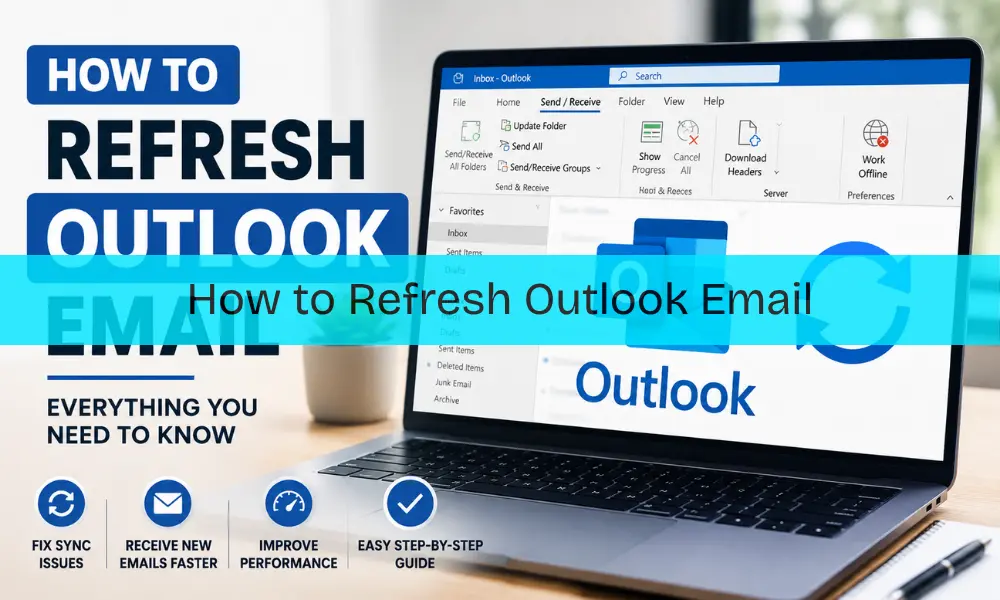
Navigate to the Send/Receive tab on the top navigation bar of your Outlook app. This is where you’ll initiate the manual send/receive of emails. The Send/Receive tab is a crucial feature for keeping your inbox up to date. Located at the top taskbar, it triggers Outlook to automatically check for new emails and keep everything synchronised.
Clicking Send/Receive All Folders
Click the Send/Receive All Folders button to prompt Outlook to check for new emails across all folders in your inbox. This action initiates the synchronization process, ensuring all folders and inboxes are refreshed and updated with the latest content. Choosing to sync all folders guarantees every aspect of your Outlook account gets properly updated.
Monitoring the Refresh Status
Wait a few moments while the process completes—observing the status bar located at the bottom right of the Outlook interface. You’ll see a message in the bottom right-hand corner of your Outlook window when the send/receive is completed. The status bar provides real-time updates on the progress of your refresh, giving you immediate feedback and Peace of Mind.
Verifying New Emails
Following the successful refresh, check your Inbox and mailbox folders to verify the presence of newly arrived emails or recently received messages. If the refresh process was effective, the newly received emails should be readily visible, providing confirmation that your Outlook is up to date. Review your main Inbox, ensuring no messages are missed, then Respond Appropriately to maintain timely communication.
Synchronising All Folders
Once you’ve accessed the Send/Receive tab, clicking Send/Receive All Folders initiates the synchronisation process, ensuring all folders and inboxes within Outlook are refreshed and updated with the latest content.
Choosing to sync all folders ensures that every aspect of your Outlook account, including subfolders and additional mailboxes, is kept up to date. This comprehensive refresh is essential for maintaining a complete and accurate overview of your email communications. The action of utilising Send/Receive All Refreshes all folders and inboxes, ensuring new emails are retrieved and displayed. Meanwhile, Send/Receive This Folder allows for selective synchronisation based on your immediate needs.
Refreshing on Desktop
The desktop application of Outlook offers more than basic email management; it integrates features for scheduling and task management, making it a comprehensive tool for both personal and professional use.
To refresh your inbox, navigate to the Send/Receive tab and choose between updating your current folder or all folders, ensuring your data is properly synchronised. I’ve found the desktop version particularly powerful when dealing with complex folder structures and multiple accounts that need simultaneous updating.
Web-Based Refreshing
For users who prefer accessing emails through a web browser, refreshing your Outlook inbox is remarkably simple. Simply click the refresh button, a rounded arrow located near the Folders section on the left side of your mailbox page, to do the trick. This action prompts Outlook to sync and display any new emails or changes made to your account. I’ve found this particularly handy when working from different computers throughout the day.
Mobile App Convenience
Outlook’s mobile app brings the convenience of email management directly to your smartphone. With a dedicated refresh button and the option to reset data from the settings menu, updating your inbox on the go is both easy and efficient. Whether you’re commuting or traveling, staying connected to your emails has never been more accessible with mobile synchronisation.
Adjusting Automatic Settings
If you find you need to refresh your inbox frequently, consider adjusting your automatic send/receive settings. Navigate to the File tab, click Options, then Advanced, and scroll down to the Send and receive section.
Here, you can adjust how frequently Outlook checks for new emails, setting it to check every minute, every five minutes, or even every hour, based on your workflow needs. This customisation has saved me countless manual refreshes during busy project periods.
Why Regular Refreshing Matters
Keeping your Outlook inbox refreshed is more than a matter of convenience—it’s about staying informed and responsive to urgent work email and personal message threads. Being up-to-date ensures you’re always informed.
An updated inbox enables timely responses, promoting more effective communication with colleagues, clients, and loved ones. This responsiveness is beneficial for maintaining relationships and critical in professional settings where time-sensitive information is exchanged. A refreshed, organised inbox helps streamline your workflow, reducing time spent searching for emails or managing outdated information, ultimately boosting your overall productivity by letting you prioritise tasks effectively.
Conclusion
Refreshing Outlook regularly is a simple yet powerful habit that ensures you never miss an important email, stay organised, and maintain smooth communication across all your devices. Whether on desktop, web, or mobile, keeping your inbox up to date helps you manage tasks effectively and respond in a timely manner.