



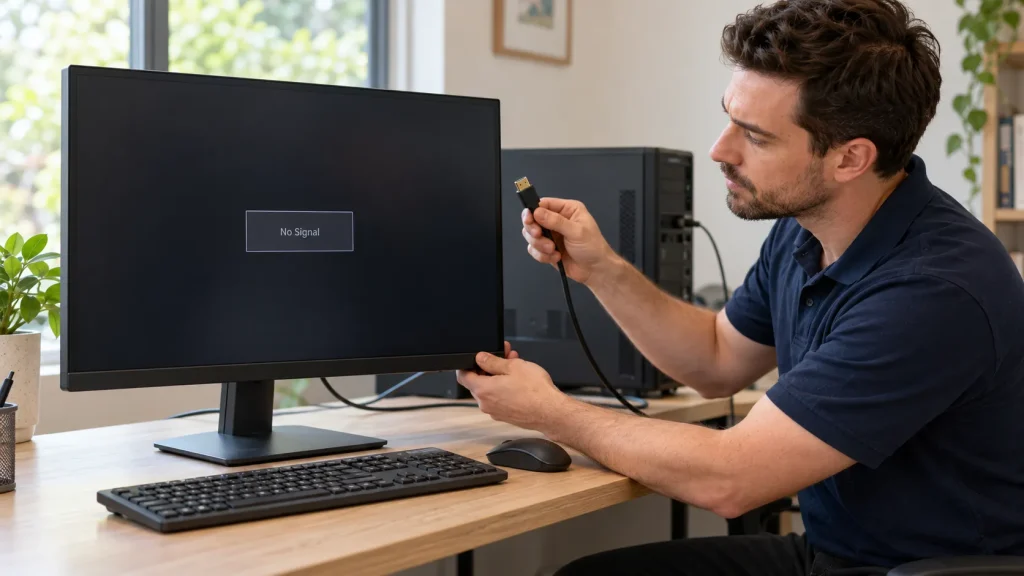
Computer Monitor Repair – Common Problems and Solutions
You sit down to start work, press the power button, and wait. Nothing. Or maybe the screen flickers, shows strange lines, or flashes a “No Signal” message. If you work from home, game, or study on a big screen, a faulty monitor can stop your whole day. Before you rush out to buy a new one, take a breath. Many monitor problems are easy to fix.
So, can a computer monitor be repaired? Yes, most monitor problems can be fixed. Many come from a loose cable, the wrong input, old graphics drivers, or the wrong display setting. You can often fix these at home in minutes. Internal faults, like a failed power board or port, need a professional repair. If the screen panel is badly damaged, replacing the monitor is often the better choice.
Common Computer Monitor Problems
| Problem | Possible Cause | When to Consider Professional Help |
| No signal or black screen | Cable, input, graphics hardware, or monitor fault | When the screen remains blank or continues to show “No Signal” |
| Flickering | Connection, refresh rate, graphics hardware or backlight issue | When the flickering continues or affects normal use |
| Lines on the screen | Cable, connection, or display panel fault | When lines remain visible or become more frequent |
| Dead or stuck pixels | Display panel fault | When damaged pixels affect your viewing experience |
| Blurry or stretched image | Resolution, display settings, or hardware issue | When the image remains unclear after checking the display settings |
| Washed-out colours | Display settings, cable, or monitor hardware | When colours remain incorrect or change unexpectedly |
| Won’t turn on | Power connection or internal hardware fault | When the monitor remains unresponsive after basic power checks |
Start With the Monitor Self-Test
A monitor self-test can help show where the problem may be.
Turn the monitor off and disconnect the video cable. Then turn the monitor back on. If a self-test screen appears, the monitor may be working properly. The problem could be with the cable, computer, or settings.
If the monitor does not show a self-test screen, it may have an internal fault.
Monitor Shows “No Signal” or a Black Screen
A “No Signal” message means the monitor is not getting a usable signal. Try these steps:
- Check that the cable is firmly connected at both ends.
- Use the monitor’s buttons to select the correct input, such as HDMI or DisplayPort.
- Try a different cable or port.
- Restart your computer and update your graphics drivers.
- On a laptop, press Windows + P to switch display modes.
On a desktop with a separate graphics card, plug the monitor into the graphics card, not the motherboard.
Flickering Screen
Flickering may come from the cable, display settings, graphics hardware, or backlight.
Secure the cable at both ends. Then check the refresh rate in Settings > System > Display and update your graphics drivers. If the screen keeps flickering, the backlight or another internal part may be faulty.
Lines on the Screen
Horizontal or vertical lines can point to a cable, connection, or display problem. Swap the cable first, then run the self-test.
If the lines also appear on the self-test screen, the display panel is likely faulty. A Smart Geek can tell you whether it can be repaired or needs a replacement part.
Dead or Stuck Pixels
Dead pixels usually appear as small black dots. Stuck pixels may stay on one colour.
Software cannot normally repair a dead pixel. If several pixels are faulty, check the manufacturer’s warranty and pixel policy.
Colour, Blurry, and Resolution Problems
Blurry text or wrong colours are usually caused by a setting.
Set Windows to your monitor’s native resolution in Settings > System > Display. For washed-out colours, turn off “vivid” or “dynamic contrast” modes, or reset the monitor to factory settings. If nothing helps, the cable or the monitor’s hardware may be at fault.
Monitor Won’t Turn On
First, make sure the power cable is connected properly and try a different power point. If the monitor still does not turn on, avoid opening it yourself. The fault may involve the power board or main board.
Is It Better to Repair or Replace a Monitor?
Repair may be worth considering when the monitor is newer, has a higher value, or has a fault that can be fixed without replacing the entire panel.
Replacement may make more sense when the panel is cracked or badly damaged, parts are difficult to find, or the monitor is already old.
Know Your Rights in Australia
If a new monitor fails early, Australian Consumer Law may help. The ACCC says you can ask for a free repair for a minor fault, and a refund or replacement for a major fault. Keep your receipt.
How to Prevent Monitor Problems
- Use a surge protector. Power surges can damage electronic devices.
- Clean safely. Turn the monitor off, then wipe it with a soft microfibre cloth. Never spray liquid directly onto the screen.
- Look after your cables. Avoid sharp bends and keep a spare compatible cable for testing.
- Give the monitor enough space. Good airflow helps stop heat from building up.
A Simple Fix That Saved a Monitor
Take Daniel, who works from home in Melbourne. One morning, his monitor showed “No Signal.” Instead of buying a new one, he booked a quick check. The geek found the cable was plugged into the motherboard, not the graphics card. The fix took five minutes, and Daniel was back at work before lunch.
Get Expert Help With Computer Monitor Repair in Melbourne
Our Smart Geeks can check the monitor, cables, graphics hardware, drivers, and other connected devices. We’ll find out whether you need a monitor fix, laptop screen repair, computer repair, or another type of IT support.
Book your computer repair with Smart Geeks today and get your screen working again.
Need help setting up a new monitor or home office? Our home tech solutions team can help.
Conclusion
Many monitor problems look serious at first, but most are caused by simple issues. Check the cables, input source, settings, and resolution first. Then run the monitor’s self-test. If the fault is inside the monitor, get it checked before you decide to repair or replace it. A few easy checks can bring back a clear, bright screen, and that’s a great feeling.
FAQs
Can a computer monitor be repaired?
Yes, many monitor problems can be repaired. Some issues are caused by cables or settings. Internal faults may need professional repair. A badly damaged screen may need replacement.
Why does my monitor say “No Signal”?
This can happen when the cable is loose or the wrong input is selected. On a desktop, make sure the monitor is connected to the graphics card.
Why does my monitor have vertical lines?
Vertical lines can be caused by a bad cable or a faulty screen panel. If the lines also appear during the self-test, the panel may have a fault.
How do I dispose of an old monitor in Australia?
Take your old monitor to an e-waste recycling point. You can use Planet Ark’s Recycling Near You service to find a suitable location.