



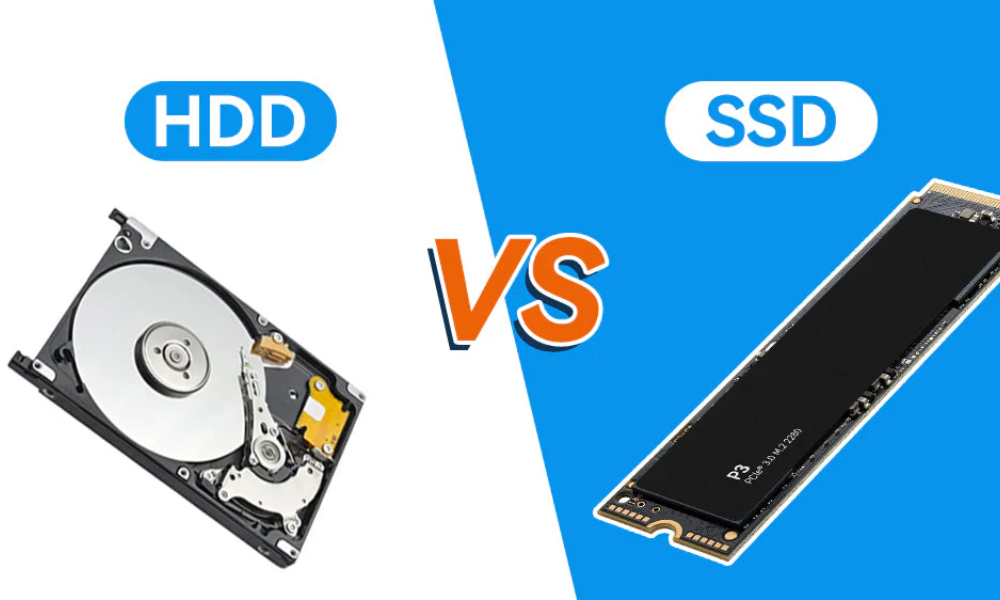
When diving into computer storage, the debate between Hard Disk Drives (HDDs) and Solid-State Drives (SSDs) remains at the forefront of technology discussions. Understanding their unique features is crucial for anyone navigating the vast ocean of technology.
SSDs deliver rapid data access, durability, and energy efficiency through flash memory. At the same time, HDDs continue attracting users with larger storage capacities and affordability, making them an ideal solution for extensive data storage needs.
So, which storage drive offers better performance, longer lifespan, and the best value for your money?
HDD vs SSD: Technological Differences
The fundamental technology separating these storage solutions determines everything from speed to durability, shaping how each handles your data.
Hard Disk Drives (HDDs)
Hard Disk Drives have been a staple in computing for decades, relying on spinning magnetic disks (platters) coated with magnetic material to store data. A mechanical arm with a read/write head physically moves across surfaces to access data. Traditional HDDs are slower due to mechanical limitations, suffering from lower data transfer rates and higher latency.
Key characteristics include:
- Capacity: Larger storage capacities than SSDs at lower cost per gigabyte, offering generous space without breaking the bank
- Speed: Slower performance with a mechanical nature that can slow things down during intensive operations
- Durability: Prone to mechanical failure because of moving parts; the spinning disks and mechanical arm make them vulnerable to knocks and drops
The HDD spins magnetic disks to manage data as a veteran in the storage game. These drives pose risks of physical damage and data loss from shocks, which is particularly problematic for portable systems.
Ideal for:
- Individuals who store and back up a lot of data that they don’t access frequently
- Those with minimal needs for computers or on a tight budget who construct or purchase a PC
- Archivists and librarians who require vast storage for extensive digital collections
- Multimedia enthusiasts with large libraries of movies, music, and photos
Solid State Drives (SSDs)
Solid State Drives represent newer technology that is gaining popularity for their significant performance advantages over traditional storage. Using NAND-based flash memory, which is non-volatile and semiconductor-based, they deliver faster data access and transfer speeds without mechanical delays. Modern computers ship with SSDs that ditch the moving parts of traditional HDDs for zippier data access, lower energy use, and better endurance.
Key advantages:
- Speed: Quicker boot times, faster file transfers, and reduced application load times
- Durability: With no moving parts, they’re more durable and less susceptible to physical damage
- Energy Efficiency: Consume less power, ideal for laptops and mobile devices where battery life is crucial
The lack of mechanical elements means they can take a bump without a hiccup. Their energy efficiency and reliability make them perfect for mobile computing environments.
Perfect for:
- Power users handling hefty tasks like video editing or 3D modelling
- Gamers wanting immersive experiences with quick loading times
- Frequent file movers managing large chunks of data regularly
- Creative professionals working on large graphic design projects or high-resolution media
- Data analysts and scientists who process large datasets
Form Factors
Both HDDs and SSDs come in various form factors to fit different devices and usage scenarios.
3.5-inch SATA
3.5-inch SATA drives are commonly used in desktops; they’re easy to install, widely compatible, and bigger in size. These traditional drives offer maximum capacity options for desktop systems.
2.5-inch SATA
2.5-inch SATA drives are found in laptops and some desktops; they are easy to install and widely compatible. This compact size balances portability with storage capacity, making it versatile across device types.
M.2
M.2 represents an increasingly popular form factor for SSDs that connects directly to the motherboard, offering higher speeds in a compact size. Its slim profile suits modern ultrabooks and high-performance builds.
PCIe
PCIe SSDs connect via PCIe slots on the motherboard, providing even faster speeds suitable for high-performance applications and gaming. These deliver the ultimate performance for demanding professional workloads and enthusiast systems.
Types of SSDs
SSDs can be classified based on memory technology.
Single-Level Cell (SLC)
Single-Level Cell (SLC) offers the highest performance and longevity, but at a higher price. In enterprise environments, SLC is the preferred choice for mission-critical applications that demand the highest endurance.
Multi-Level Cell (MLC)
Multi-Level Cell (MLC) is a compromise between performance, endurance and cost. This is the middle ground that’s ideal for professionals looking for dependable performance but unwilling to pay a premium price.
Triple-Level Cell (TLC)
Triple-Level Cell (TLC) offers higher capacity for a lower price, lower performance and endurance than SLC and MLC. Most consumer SSDs offer the best value using TLC.
Quad-Level Cell (QLC)
Quad-Level Cell (QLC) provides the highest capacity and lowest cost, although with less performance and endurance. QLC is a viable option for cost-conscious users looking to use it for general computing.
Best Practices for Maintaining Your Drive
Follow these tips to make your storage drives last longer and function well:
- Keep Systems and Drivers up to date: Keep operating systems and drivers up to date frequently.
- When you’re ready to clean up Windows, uninstall any programs you don’t need.
- Clean Up: Use disk cleanup programs to eliminate unnecessary files
- Here, enable TRIM for SSDs: This helps to keep performance over time.
These practices actually help to prolong drive life and may avoid frequent computer repairs.
When to Upgrade Your Drive
A computer’s performance can be greatly enhanced by upgrading the storage. There are certain indicators that it’s time for an upgrade:
- Slow Startup: If the computer takes a long time to start up, upgrade to an SSD drive.
- Slow Application Start Times: Apps take a long time to open when you run them, which suggests your HDD is having difficulty.
- Too Little Storage: When you’re constantly running out of storage, it could be time to get a bigger drive.
If you are suffering from these symptoms and need help, you may want to call someone for Computer Troubleshooting or repairs to find out what’s going on.
How to Upgrade Your Drive
The transition from HDD to SSD is relatively simple:
- Back up Your Data: Always back up important files.
- Choose the appropriate SSD: Make sure it is compatible with the computer.
- Install the SSD: Remove the existing HDD and install the new SSD. Follow your computer’s service manual for instructions.
- Reinstall your Operating System: Install using recovery media or a USB stick.
For those who prefer professional installation, pc cleaning service and upgrade assistance are available. Plus, once you’ve improved your storage, you may also want to make sure your Wi-Fi system is set up for maximum performance. For Apple users, dedicated Mac repair services might assist you in optimising your system and upgrading your SSD.
SSD or HDD for Laptop: Which One to Choose
In need of more storage, but not sure between an SSD or an HDD for your laptop? The solution is a combination of your needs, your jobs type and budget.
For tasks that require speed and agility, like video editing or gaming, an SSD is the top choice for fast boot times, quick app response, and a smooth, seamless computing experience.
On the other hand, for those who prefer to store large quantities of data infrequently accessed, an HDD might be a practical and cost-effective option, ideal for individuals who want to have extensive photo libraries or movie archives without breaking the bank.
Looking for a professional storage upgrade or computer assistance? Stop by Smart Geeks for professional computer repair and troubleshooting services that cater to your needs.