



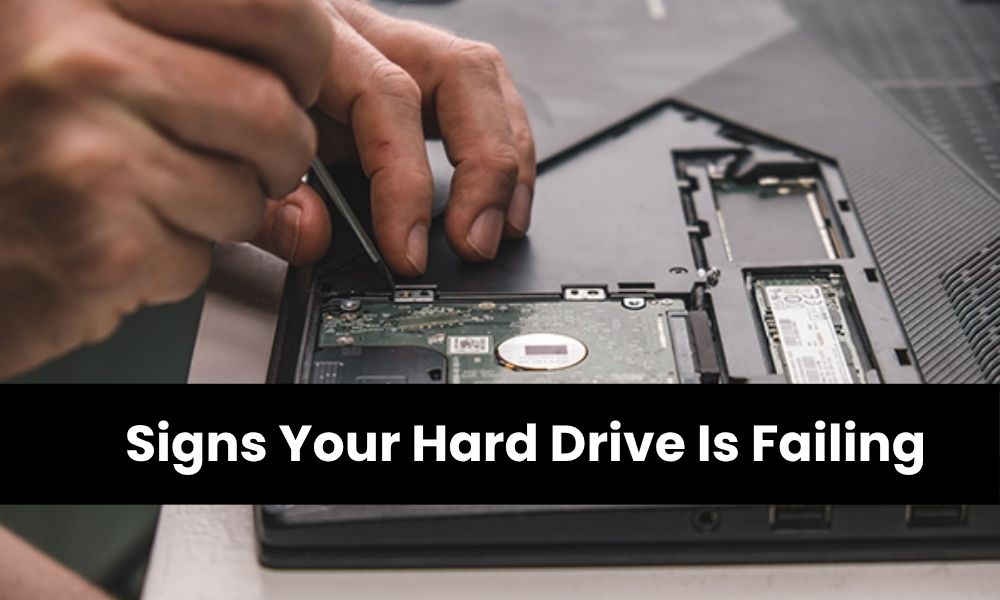
Hard drives are the backbone of data storage, yet they are vulnerable components with limited lifespans. Recognizing early warning signs of hard drive failure can mean the difference between safely recovering your data and losing it permanently.
From unusual noises to system crashes, understanding these symptoms empowers users to act quickly. This guide explores critical indicators of failing hard drives, diagnostic tools, and preventive measures to protect valuable information before disaster strikes.
Slow Performance and System Freezing
Reduced performance often serves as the first warning sign of drive failure. When systems slow down while launching programs, searching files, or saving documents, attention becomes necessary.
Computers may suddenly freeze, take excessive time to boot, or load programs at a painfully slow pace. These symptoms typically indicate the system is struggling to access data properly, suggesting developing issues with the drive’s read/write capabilities. If you notice these issues regularly, it may be time to seek professional computer repairs.
Frequent Crashes and Freezing
All devices occasionally freeze or crash; that’s normal computing behavior. However, frequent freezing and crashing could indicate hard drives nearing the end of their life, particularly after installing new software. If computers crash or freeze regularly, this represents a possible hard-drive defect requiring immediate professional attention. This is often when expert Mac repairs or Computer Troubleshooting can prevent permanent data loss.
Corrupted Data and Disappearing Files
Noticing more corrupted files than usual suggests hard drives might be failing. Signs include scrambled folder names, error messages when moving or saving files, files failing to open, and unexpectedly disappearing folders. Documents once accessible may become unreadable, or programs may crash unexpectedly. Files may contain strange characters, missing data, or incomplete content, rendering them useless across multiple file types simultaneously. Using a professional pc cleaning service can sometimes help prevent further damage.
Understanding Bad Sectors
Two main causes drive data corruption: virus infection or bad sector accumulation. The magnetic media on platters breaks down over time, an inevitable sign of aging hardware. All new hard drives carry bad sectors from manufacturing.
When discovered, they’re automatically replaced with spare sectors on another platter section. Once spare sectors are depleted, data integrity becomes significantly compromised. More bad sectors increase the probability of corrupted data and deteriorating drive health, with degradation accelerating over time.
Unusual Noises
Clicking, grinding, or beeping sounds signal internal hard drive problems. The most common is repetitive clicking when the head attempts to write data, fails, returns to the home position, and retries without success. As heads fail, they drop onto platter surfaces, scratching delicate components and causing immediate data loss.
Users may hear sounds that weren’t present before, clicking, grinding, or whirring, indicating mechanical issues in traditional spinning drives, usually from failing read/write heads or spindle motor degradation. While solid-state drives don’t make mechanical noises, similar issues manifest through system slowdowns or errors. The “Click of Death” results from heads repeatedly trying and failing to write data. Screeching or grinding suggests bearings or spindle motors are failing.
If unusual noises occur, back up data immediately and power down to avoid worsening damage.
S.M.A.R.T. Status Monitoring
Self-Monitoring Analysis and Reporting Technology (SMART) provides internal status monitoring capabilities, detecting impending failures and alerting users to back up data. This is a critical step in Computer Troubleshooting. If SMART status shows NOT OK, Bad, Caution, or Unknown, monitor the drive closely and back up urgently.
SMART represents a global industry standard built into modern computers for early issue detection. It monitors parameters including read/write errors, start/stop cycles, runtime, temperature, and sectors requiring rereading due to errors. When parameters exceed accepted limits, SMART alerts users to take preventive action like backing up or replacing drives. While not foolproof for all failure types, SMART minimizes data loss when properly utilized and regularly checked.
Running SMART Tests
Windows 11:
- Type “cmd” in the taskbar search field and press Enter
- In Command Prompt, type wmic diskdrive get status and press Enter
- “OK” indicates no detected defects; “Pred Fail” means defects exist—back up immediately
Mac:
- Open Applications, select Utilities folder, click Disk Utility
- Select the volume to check
- Click Info in the toolbar for results
Using Check Disk (chkdsk)
If SMART detects defects, use Windows’ chkdsk utility. This tool scans file systems and metadata for logical and physical errors. To use chkdsk:
- Open File Explorer, right-click the drive for scanning
- Navigate to the Tools tab, click Check under Error checking
- Click Scan drive to continue, even if no errors are initially detected
Frequent Error Messages and Blue Screen Crashes
Repeated system errors, file path issues, or blue screens indicate potential drive failure. These messages might seem random, but they signal trouble reading or writing data. Warnings about unreadable boot devices, corrupted sectors, or drive-not-found notifications aren’t mere technical hiccups; they’re serious failure indicators demanding immediate investigation.
Drive Not Recognized
When computers stop detecting hard drives, it’s a critical failure point. Users may boot systems to find drives missing in BIOS or File Explorer, or the system prompts formatting despite recent normal operation. This represents one of the last and most dangerous signs of complete failure, likely indicating physical damage or corrupted firmware.
Physical Damage Issues
Head Crashes: Occur when drive heads physically touch platters, caused by an electrical malfunction between the logic board and the head, or external trauma. Dropping drives can cause immediate head crashes. Whether spinning or not, heads can slap or crash into magnetic platter layers, causing severe permanent damage.
PCB Problems: Power circuit boards enable read/write heads to create and interpret data. Electromagnets power tiny arms that change cell orientation, controlled by microcontrollers within PCBs. PCB failure causes drive failure. Symptoms include burning smells, unresponsive drives, overheating, format prompts, and strange file errors.
Adaptive Deviation: Every hard drive’s firmware contains a documented list of imperfections. Over time, physical operation changes gradually, causing read/write heads to drift off track, called adaptive deviation. Original manufacturer adaptives remain constant despite shifting physical operations.
Common Causes of Failure
Power Issues: Voltage fluctuations, sudden outages, or power spikes severely damage drive electronics. Improper shutdowns corrupt stored data or cause failure. Always shut down correctly; this also performs mini system cleanups.
Viruses and Malware: Malicious programs cause significant damage, potentially leading to complete failure. Beyond stealing information, they corrupt system files and overwhelm drives. Quality antivirus software is essential protection.
Overheating: Devices overheat quickly without proper ventilation. High temperatures physically damage components, shortening service life and causing failure. Direct sunlight exposure and dusty vents accelerate overheating. Violent shocks and vibrations also cause physical damage; avoid dropping devices.
Outdated Software and Drivers: Manufacturing defects occasionally cause premature failure, but outdated or faulty software and drivers create compatibility issues, leading to unexpected complete failure.
What to Do When Drives Fail
Computer-savvy users may self-diagnose issues, but diagnosing differs from repairing data loss damage. Never rely on internet data recovery tools; data recovery isn’t a DIY weekend project. Attempted repairs likely result in irreparable damage and permanent loss. Every hard drive failure, regardless of cause, requires professional data recovery specialists. Don’t waste time, energy, or risk permanent data loss attempting independent fixes.
Prevention Strategies
The key to avoiding defects or failure is maintaining computers and backing up regularly. Multi-feature tune-up tools help with tasks including cleaning devices, eliminating data waste, and freeing storage space. Proactive steps with regular clean-up tools increase crash prevention chances.
Most people don’t consider hard drives until problems emerge, but by then, it may be too late for effective data recovery. If experiencing strange noises, corrupt files, or system crashes, back up data and have devices examined immediately. Continuing to use faulty drives worsens conditions rapidly. Even with accessible data, every moment of continued use increases permanent loss significantly. Understanding that hard drives eventually fail, through age or damage, is crucial. Don’t take driving health for granted; act before disaster strikes.