



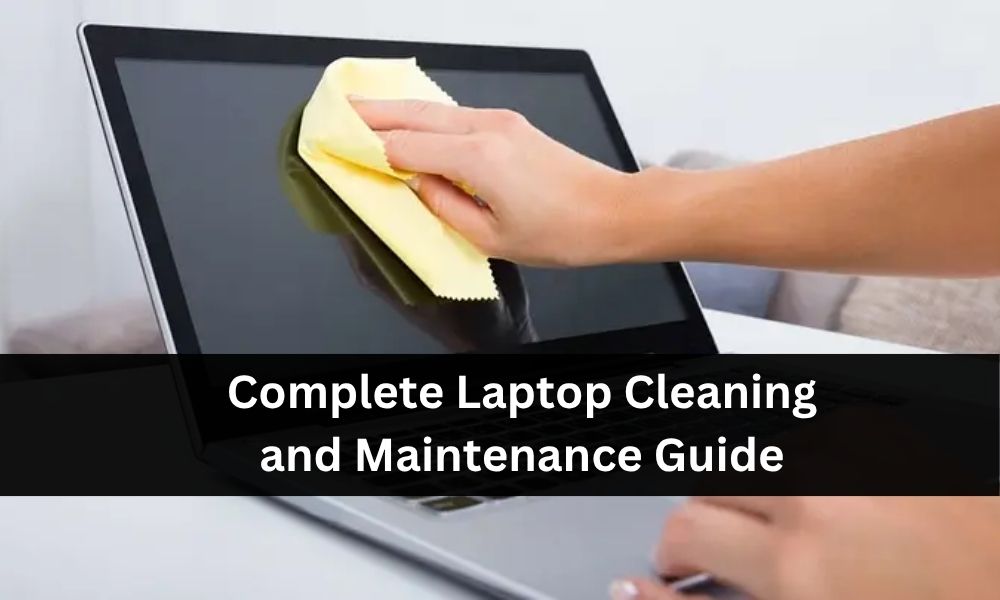
Your laptop screen accumulates fingerprints, smudges, and dust that can seriously impair vision and create a messy appearance. As portable personal computers age, dirt collects on keys and in the spaces around them, which can slow down the proper working of your machine.
The surface needs consistent care for optimal performance and longevity. Using correct tools and methods guards against damage while ensuring a flawless, streak-free display every time.
Safety First: Initial Steps
Before starting any deep cleaning, always shut down the machine, remove all power sources, and take out the battery to prevent short circuit issues. Always turn off and unplug your laptop before cleaning, as this prevents any short circuit from harming the unit.
Dell Technologies recommends powering off completely and disconnecting all power cables and devices as a CAUTION measure. When possible, remove the battery too, especially if you’re planning a thorough session. People who skip this step risk moisture getting into live components, which can cause serious internal damage. This simple precaution protects both you and your machine from electrical issues. Taking these initial steps seriously means you can work confidently without worrying about spilled water or cleaning solution reaching powered circuits, particularly helpful if you’re trying to avoid unnecessary mac repairs later.
Tools and Materials You’ll Need
Gathering the right essentials makes cleaning efficient. You will need:
- Soft, non-abrasive microfiber cloth
- Distilled water
- White vinegar
- Spray bottle for mixing cleaning solution
- Compressed air or compressed air can be used for reaching tight spaces
- Cotton buds and a soft brush for detailed work around keys and ports
- Isopropyl alcohol at 70% concentration or higher (optional but effective disinfectant)
Keep these tools organised before you start to prevent interruptions and ensure you’re using correct materials that won’t compromise your laptop’s delicate coating or screen. if problems persist beyond basic maintenance, professional computer repairs may be required.
How to Clean Your Laptop Screen
Clean your laptop screen carefully using the correct tools and methods at home:
- Remove loose dust: Start by wiping away loose dust with a dry microfiber towel—avoid applying heavy pressure to prevent damage.
- Prepare cleaning solution: Mix equal parts distilled water and white vinegar in a spray bottle, then shake gently.
- Apply solution properly: Dampen the cloth by misting one corner with solution; never spray directly to avoid moisture seepage into screen borders.
- Wipe gently: Wipe in tiny circular patterns to remove stubborn spots, smudges, and fingerprints.
- Buff to finish: Buff with a dry cloth to remove streaks for a spot and a dirt-free screen.
The LCD screen is the most sensitive part of your machine, so keep pressure as light as possible.
Keyboard Cleaning
Your keyboard requires regular attention since dirty dust collects on keys from your hands and the environment:
- Shake out loose debris: Turn the laptop upside down with the screen open and give a few gentle taps on the back to push dust out from between keys.
- Wipe the surface: Use a dust-absorbent cloth or a damp cloth to wipe the surface gently, just dip it in water or disinfectant liquid, then squeeze to remove extra water.
- Use compressed air: For stubborn dust particles and filth, compressed air works brilliantly to blow dust from the spaces.
- Deep clean with tools: A vacuum cleaner helps with deeper cleaning, and cotton buds dampened with isopropyl alcohol reach tricky spots around keys.
- Remove key caps (if necessary): This should only happen if too much dust has blocked proper functioning. Take a picture of your keyboard first. If you notice sticky or unresponsive keys even after cleaning, consider a pc cleaning service for professional support.
Cleaning the Laptop Exterior
Cleaning the case and exterior of your laptop requires a gentle approach:
- Take water or a cleansing liquid in a bowl
- Dip a sponge or cloth into your solution, then squeeze thoroughly to remove excess water
- Move the sponge in a back-and-forth manner across the casing, wiping the lid, bottom, and sides with a slightly damp microfibre cloth
- Avoid using harsh cleaners that could damage the finish or coating of your laptop
- Keep the dampened sponge away from ports to prevent moisture intrusion
Pay attention to the liquids you choose; solutions should not contain harsh substances like ammonia or acetone.
Cleaning Ports and Vents
Debris and filth deep in ports can be removed using toothpicks and cotton buds:
For ports (HDMI, Ethernet, USB):
- Use toothpicks in an in and out motion to clean filth, don’t use high force as you could damage delicate connectors
- After loosening dust with toothpicks, use cotton buds in circular and back-and-forth motions to collect loosened dust
For air vents:
- Use a can of compressed air to clear out possible dust and debris from cooling vents
- Blow out dust gently to prevent pushing it further inside
- A soft brush can help remove stubborn dirt that compressed air alone can’t dislodge
Common Mistakes to Avoid
Cleaning your laptop screen appears easy, but little mistakes can cause permanent damage to the display. Steer clear of these typical errors:
- Using harsh chemicals: Ammonia, acetone, or alcohol-based cleansers will induce discolouration and produce a difficult-to-remove hazy coating on the delicate coating of your screen. Always choose distilled water or a water-vinegar mix as a cleaner suitable for LCDs.
- Using dirty cloths: A dirty or dusty cloth can lead to scratches and smearing because dirt particles trapped in the fabric act like sandpaper on the delicate screen surface.
- Ignoring manufacturer instructions: This might void your warranty. Always find cleaning advice in your laptop’s handbook or visit the official page for support.
Prevention Tips: Keeping Your Laptop Clean
Besides increasing visibility, maintaining a clean laptop screen extends your gadget’s lifetime significantly. Use the following tips to prevent your screen from getting dirt and smudges:
- Close your laptop when not in use to keep dust and trash off the screen
- Cover the keyboard with a microfiber when the laptop is closed to prevent dirt and oil from transferring from keys to the screen
- Wash your hands before handling your laptop to reduce fingerprints and minimise the accumulation of oils and dirt
- Avoid drinking or eating around your laptop since food particles and inadvertent spills often get on the screen
- Don’t touch the screen; use only the keyboard, trackpad, or mouse for navigation
Cleaning Schedule: How Often Should You Clean?
Clean your laptop screen when it seems dirty or smeared, typically every one to two weeks, depending on regular use. If you often use your gadget outside or in dusty surroundings, consider cleaning it more frequently.
Recommended schedule:
- Weekly: Surface wipe-down to maintain freshness
- Monthly: Deep clean of vents, keyboard, and screen
Avoiding touching the screen and closing the laptop when not in use will help lower the frequency of cleaning needed. Establishing this routine prevents buildup and keeps your machine performing optimally without requiring marathon cleaning sessions that could risk damage from over-handling.
Essential Laptop Care Beyond Cleaning
The following best practices will help you care for your laptop beyond basic cleaning:
Power Protection
Use a surge protector when possible, as a single power surge can damage your laptop within seconds, hindering your laptop’s functionality. To help protect your laptop from sudden, transient increases and decreases in electrical power, consider using a surge suppressor, line conditioner, or uninterruptible power supply (UPS).
Surface Placement
Avoid using your laptop on uneven or soft surfaces like a sofa, bed, carpeting, comforters, or pillows. This prevents air vents on the bottom or sides from being blocked, which could cause reduced airflow and overheating issues.
Screen Protection
Do not put weight on top of the laptop or place anything that could put pressure on the screen. Unnecessary pressure can push the LCD screen into the keyboard and eventually damage it. Avoid touching the screen with sharp or pointed objects like pencils or pens, as these can cause scratches or permanent damage to the display.
Moisture Protection
Keep your laptop dry at all times. Protect it from rain, snow, and any liquid. Even small amounts of moisture can cause serious internal damage to electronic components.
AC Adapter and Power Cable Care
Use only the Dell-provided AC adapter approved for use with your Dell laptop or docking station. Avoid covering the AC adapter with paper or other items, which reduces cooling. Do not use it inside a carrying case, as this can lead to overheating. Be mindful of where the power cable is plugged in, as the cable may be a tripping hazard.
When inserting or removing the power cable, ensure the connector is lined up with your laptop’s power port to avoid damaging the port. Unplug the AC Adapter after the battery is fully charged and run on battery power. Plug it back in after the battery charge falls below 50 per cent to help extend battery life.
Carrying or Transporting Your Laptop
Dell Technologies recommends powering off your laptop completely before carrying or transporting it. This CAUTION prevents accidental damage.
Before Transport: Remove devices that are plugged in, like USB drives or the AC adapter. If hit, these remaining devices could damage laptop ports or the devices themselves during transport.
Proper Handling: Do not pick up the laptop by holding the screen or the corner of the palm rest, as this puts unnecessary pressure on the LCD, palm rest, and touchpad. Always lift the laptop from its base to distribute weight evenly.
Protection Recommendations: Consider purchasing a protective laptop case for the highest level of protection, like a gumdrop case. Using a laptop sleeve, laptop carrying case, or backpack with laptop padding is essential for preventing damage during transport. Gently place (not drop) your laptop into the carrying case to avoid damage to the chassis and LCD screen.
As you maintain your device regularly, always stay mindful that persistent hardware issues may require Computer Troubleshooting from qualified professionals.
For reliable, expert support with repairs, cleaning, and diagnostics, visit SmartGeeks. Their skilled technicians keep your devices running smoothly with fast, professional service. Explore more at SmartGeeks and protect your tech today.