



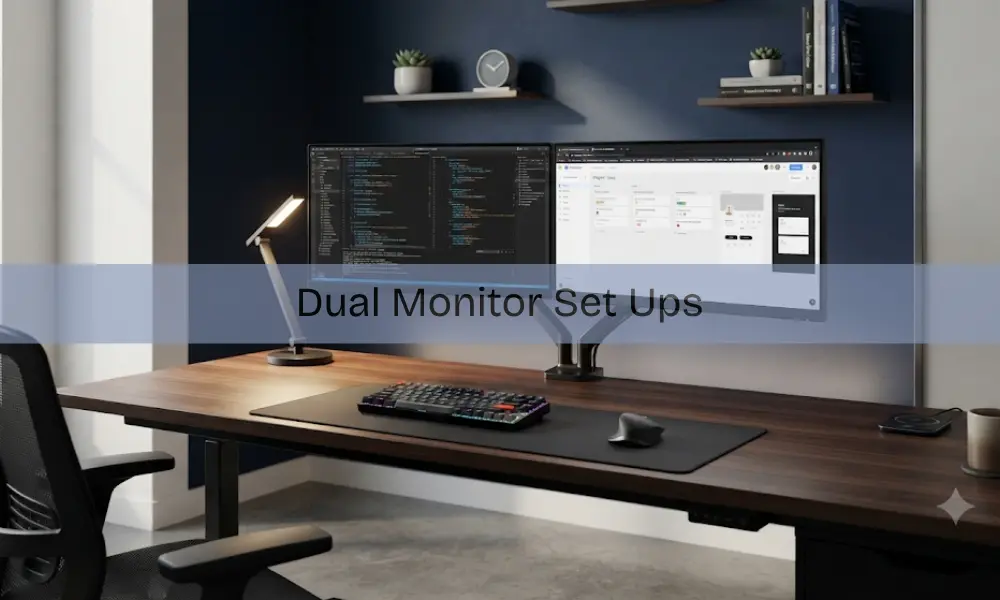
In today’s fast-paced digital world, expectations for productivity and comfort are higher than ever. Technology has radically changed the way we work, learn, and play. Dual monitor setups have become a necessity, whereas previously, it was regarded as a luxury. These designs have become very popular among professionals, students, and hobbyists due to their efficiency, less frequent window switching, and comfort.
In 2026, with the emerging technologies and powerful and affordable monitors, and new products such as adjustable dual monitor arms, it has never been easier to achieve a clutter-free and ergonomic workspace.
Here, we explore what a dual monitor is, the benefits of dual screen setups, essential considerations, and practical tips to help you design the ultimate workstation. Whether you edit videos, code software, track spreadsheets, or run virtual meetings, adding a second monitor can truly revolutionize how you use your computer.
What is a Dual Monitor Setup?
A dual monitor setup is a computer workspace set up in which two individual display monitors are attached to one system. This enables a user to stretch their desktop between the two screens and in effect doubles the screen real estate. The two monitors are usually put on the same desk with one another, but users are also welcome to consider other options like vertical stack, use it in portrait mode, or have a mixed layout.
This organization enlarges your computer environment and simplifies handling the various tasks. Here are a few examples: you can have your mail or chat open in one screen and spreadsheet or video conferencing in the other. To the developers, it is perfect to code on one monitor and test the results or see the documentation on the other. Professionals working in the creative field will find it easier to preview on one screen, with editing tools open on the other screen.
The right dual monitor system is over and above the multitasking. Ergonomics and space management are very important, better positioning is less straining and a clean well arranged desk will enable you to work without distractions.
Benefits of Dual Monitors, Why Go Dual Screen?
Various researches have indicated that productivity can be boosted by up to 20-50% with two monitors. Indeed, studies show that the increase in some users is as much as 42% when it comes to the dissemination of tasks on two screens. The following are the key benefits of dual monitors:
- Enhanced productivity:Compare documents side by side, edit videos and preview outputs or participate in virtual meetings and take notes. Constant tab switching is no more.
- Improved multitasking: Have only important applications such as communication tools running on one of the monitors and then concentrate on your main work on the other.
- Better ergonomics: When properly set up, a dual monitor system can help eliminate eye strain, minimize motion of the neck, and improve posture by getting the monitors at eye level.
- Streamlined organization: Place the most important information at the center of the screen, and reserve the second screen for the rest of the details to create a cleaner workspace.
- Creative and technical freedom: Developers, marketers, and designers have the added screen space to use to operate many applications at the same time.
Using the dual screen system, it can simplify complicated processes, files can be kept open next to each other, communication applications can also be open and you can also be better focused as you are not bouncing between windows.
Considerations for the Best Dual Monitor Setup
To maximize your dual monitor set ups, it’s important to consider key factors:
- Monitor Size & Resolution: For productivity, 24–27 inches at 1080p or 1440p works well. For gaming, 27–32 inches with higher refresh rates is ideal. By 2026, 4K resolution (3840×2160) has become a standard for professional work, with 5K and even 8K available for high-end creative tasks.
- Panel Technology: IPS panels remain the gold standard for color accuracy and wide viewing angles. Nano IPS and OLED offer stunning visuals for creative work, while VA panels provide high contrast for multimedia consumption.
- Mounting Solutions: Options like computer monitor arms or dual monitor arms help free up desk space, provide better ergonomics, and allow flexible positioning. Gas-spring arms and wall mounts are especially popular in 2026.
- Graphics Card & Connectivity: Most mid-range GPUs can drive two 4K monitors comfortably. Ensure your system supports HDMI 2.1, DisplayPort 2.1, or USB-C/Thunderbolt for high refresh rates.
- Cable Management & Aesthetics: Use cable sleeves, under-desk trays, or wireless peripherals to create a cleaner and more inspiring workspace.
Tips for Optimizing Your Dual Monitor Setup
Even the best dual monitor set ups can fall short if not configured properly. Here are some optimization tips:
- Place your primary monitor directly in front of you, with the secondary monitor at a slight angle.
- Align the top edges of both screens at eye level to minimize neck strain.
- Use adjustable monitor arms for flexibility and a clutter-free desk.
- Match brightness, contrast, and color settings across both monitors for a seamless experience.
- Use Windows or macOS settings to extend displays, arrange layouts, and tweak scaling.
A properly adjusted workspace enhances comfort, improves workflow, and makes multitasking natural.
How to Set Up Dual Monitors in Windows
Setting up two screens is straightforward:
- Check hardware compatibility: ensure your GPU and system ports support two displays.
- Connect monitors using HDMI, DisplayPort, or USB-C cables.
- Arrange them physically on your desk (side-by-side or vertical).
Open Display Settings in Windows:
- Click “Identify” to recognize screens.
- Choose “Extend these displays” for multitasking or “Duplicate” for mirroring.
- Set your main display and adjust resolution/orientation as needed.
Optional enhancements include enabling window snapping, customizing taskbars, or using tools like FancyZones or DisplayFusion for advanced layouts.
Special Use Cases, One Monitor, Two Computers
One of the questions is often asked: is it possible to use one monitor with two computers? The answer is yes. HDMI switches (or KVM switches: Keyboard, Video, Mouse) allow the use of two computers on a single monitor, and even share peripherals. This can be of great help to individuals who have to deal with work and personal systems.
Equally, configurations such as same monitor two computers allow you to switch devices quickly without having to rearrange the cables each time.
Recommended Dual Monitors for 2026
Here are some excellent monitor options depending on your needs:
| Use Case | Recommended Model | Key Features |
| Office Work | Dell UltraSharp U2723QE | 27-inch, 4K UHD, IPS, USB-C Hub |
| Gaming | LG 32GQ850-B | 32-inch, QHD, 240Hz, HDR |
| Creative Professionals | ASUS ProArt PA32UCX | 32-inch, 4K HDR, IPS, exceptional color |
| Budget Users | Acer CB272 | 27-inch, Full HD, IPS, affordable |
| Multimedia | BenQ EW3270U | 32-inch, 4K UHD, VA, HDR support |
| Business | ViewSonic VG2756-2K | 27-inch, QHD, USB-C, ergonomic stand |
These models balance resolution, refresh rate, and price, making them strong contenders for dual screen setups.
Conclusion
A dual monitor setup in 2026 is more than just a productivity boost—it’s about creating an ergonomic, organized, and efficient workspace that adapts to your needs.
Whether you’re a student, gamer, or professional, dual screens simplify multitasking, enhance focus, and elevate overall workflow. With the right hardware, ergonomic accessories, and thoughtful configuration, your workstation can truly become a hub of creativity and performance. For expert support, visit Smart Geeks and contact us today for computer repairs, mobile phone repair, or a reliable PC cleaning service.