



Laptops have become essential for work, study, and entertainment. However, intensive tasks like gaming and video editing often push these devices to their limits, causing them to overheat. This isn’t just annoying; it can seriously damage your machine and shorten its lifespan. Understanding why your laptop overheats and how to fix it can save you from costly repairs down the road.
Understanding Laptop Overheating
Overheating happens when your laptop’s cooling system can’t keep up with the heat generated by internal components like the CPU and GPU. The most common culprit? Dust buildup in fans and air vents. This seemingly minor issue can trap heat inside your laptop and cause a domino effect of problems.
Your laptop might be overheating if it feels uncomfortably hot, especially around the keyboard and bottom panel. Other warning signs include fans running constantly at full speed, performance slowdowns, and unexpected shutdowns. Don’t ignore these symptoms; they are your laptop’s way of crying out for help.
Why Overheating Is Dangerous
When your laptop overheats, several things can go wrong. First, performance takes a hit. Your system automatically throttles processing speed to prevent damage, which means everything runs slower. You’ll notice lagging applications, freezing screens, and frustrating delays.
More seriously, excessive heat can permanently damage critical components like your CPU, GPU, and hard drive. These repairs don’t come cheap, and in some cases, the damage is irreversible. Your battery suffers too; high temperatures degrade battery life, forcing you to stay plugged in more often and reducing your laptop’s portability.
Perhaps the most annoying issue is unexpected shutdowns. Laptops have built-in thermal protection that forces them to shut down when temperatures get too high. While this prevents immediate damage, it can lead to data loss and file corruption if you haven’t saved your work.
Common Causes of Overheating
Several factors contribute to laptop overheating:
- Blocked air vents from dust and dirt accumulation restrict airflow and trap heat inside
- Heavy workloads from gaming, video rendering, or running multiple programs simultaneously push your laptop’s limits
- Poor placement on soft surfaces like beds or couches blocks ventilation
- Degraded thermal paste loses effectiveness over time, reducing heat transfer from the CPU to the cooler
- Faulty cooling fans that can’t properly circulate air through the system
Practical Solutions to Fix Overheating
Clean Your Vents and Fans Regularly
This is the simplest yet most effective solution. Grab a can of compressed air and blow out dust from your laptop’s vents every few months. Turn off your laptop first, hold the can upright, and carefully spray through the vents. This improves airflow dramatically and helps your cooling system work efficiently, something often recommended during a pc cleaning service.
Use a Cooling Pad
Cooling pads provide additional airflow from underneath your laptop. They’re especially helpful during long gaming sessions or when working on demanding projects. These affordable accessories can make a noticeable difference in your laptop’s temperature.
Place Your Laptop on Hard, Flat Surfaces
Never use your laptop on beds, couches, or your lap for extended periods. Soft surfaces block air vents and trap heat. Always use a desk or table to ensure proper ventilation.
Manage Your Applications
Close programs you’re not actively using. Background applications consume resources and generate unnecessary heat. Check your task manager regularly and shut down processes you don’t need running.
Keep Software Updated
Outdated drivers and software can cause your laptop to work harder than necessary. Regular updates ensure your system runs efficiently and doesn’t generate excess heat. Enable automatic updates to stay current without thinking about it.
Adjust Power Settings
Switch to power-saving mode when you’re not doing intensive tasks. This reduces CPU usage and heat generation. You can customize these settings to balance performance with temperature management.
Check for Malware
Malicious software can silently overwork your system by running processes in the background. Use reliable antivirus software to scan your laptop regularly and remove any threats.
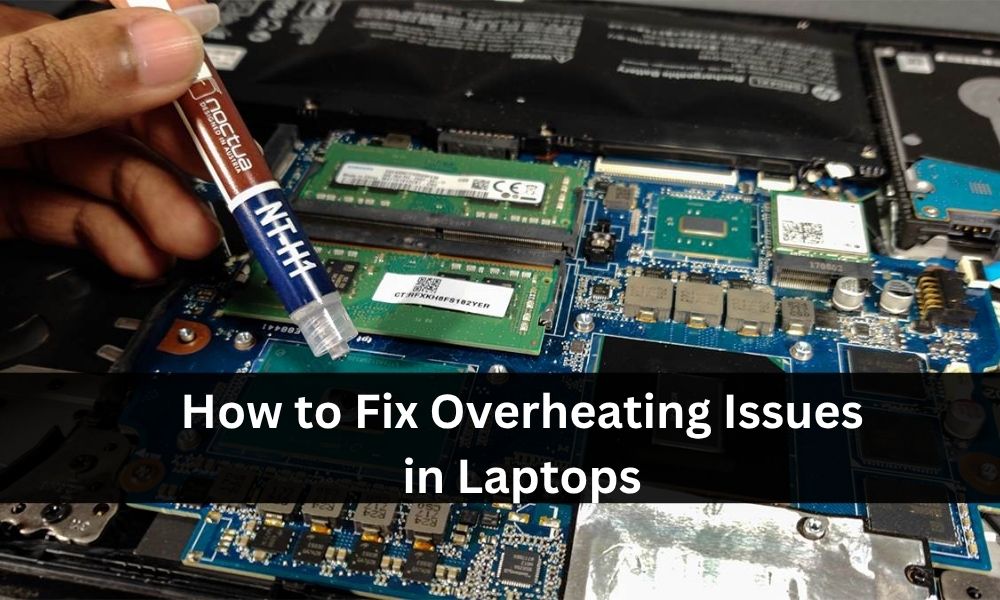
Reapply Thermal Paste
If your laptop is a few years old, the thermal paste between your CPU and cooler might have dried out. This is a more technical fix; if you’re not comfortable opening your laptop, have a professional handle this. Fresh thermal paste can significantly improve cooling efficiency, especially helpful for users switching between Windows laptops and Mac repairs.
When to Seek Professional Help
Sometimes DIY solutions aren’t enough. If your laptop continues overheating despite your efforts, it’s time to consult a technician. Professional services can thoroughly inspect internal components, replace faulty fans, and perform deep cleaning that’s difficult to do at home.
Look for repair services that use genuine parts and have experience with your laptop brand. A proper diagnostic test can identify hardware issues you might have missed and provide targeted solutions, often relying on expert Computer Troubleshooting for accurate results.
Prevention Is Better Than Cure
Maintaining your laptop doesn’t require much effort. Keep it in well-ventilated areas, clean the vents monthly, and monitor resource usage regularly. These simple habits can prevent most overheating issues before they start.
Consider using temperature monitoring software to track your CPU and GPU temperatures. This gives you early warning when things start heating up, allowing you to take action before problems develop.
Conclusion
Laptop overheating is manageable with the right approach. Regular cleaning, proper placement, smart power management, and professional help when needed will keep your device running cool and efficiently. Don’t wait until overheating causes serious damage; start implementing these solutions today to extend your laptop’s lifespan and maintain optimal performance.
If your laptop still overheats or needs expert care, visit Smart Geeks for fast, reliable help. Their technicians diagnose issues quickly and keep your device running smoothly.