



Laptops have become indispensable tools for work, play, and staying connected wherever we are. However, many users across the globe face this common issue where devices overheat at the slightest provocation, which disrupts productivity and raises concern about the health of internal components. Whether you’re working from home, gaming, doing video editing, or simply browsing the web, overheating can slow down productivity and even cause permanent damage if not addressed.
As someone who has dealt with laptops running hotter than usual, I understand this serious problem requires immediate attention and practical solutions that align with a healthier, more productive work environment for daily lives involving study and entertainment.
Common Causes of Laptop Overheating
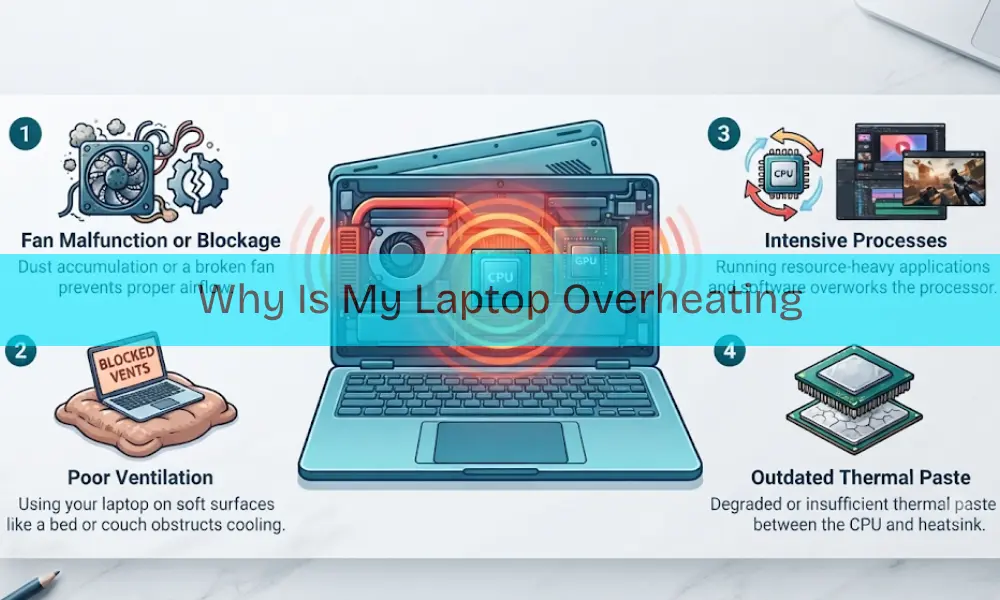
- Blocked Air Vents from Dust and Debris Over time, dust accumulation clogs your laptop’s air vents and internal fans, seriously reducing their efficiency at dissipating heat and preventing cool air from entering the system properly.
- Using Laptop on Soft Surfaces Placing your laptop on beds, couches, or soft surfaces blocks the air vents on the bottom and sides, trapping hot air inside while preventing proper ventilation and airflow.
- Heavy Workloads and Resource-Intensive Tasks Running demanding programs like video editing, gaming, or multitasking with many applications open pushes your CPU and GPU to their limits, generating excessive heat that overwhelms the cooling system.
- High Ambient Room Temperature Working in a hot environment without adequate cooling or airflow contributes significantly to laptop overheating, especially when your workspace lacks proper ventilation or air conditioning to maintain optimal temperatures.
- Dried Out Thermal Paste The thermal paste that helps transfer heat from your CPU to the cooler dries out over time, losing its effectiveness and causing your internal components to run hotter than normal.
- Malfunctioning Cooling System When your laptop’s cooling system can’t efficiently manage the heat generated by internal components like the CPU, GPU, and hard drive, temperatures rise beyond the optimal range quickly.
- Outdated or Malfunctioning Internal Components Old fans, worn-out hard drives, or outdated internal parts struggle to work efficiently, generating excess heat while failing to cool down properly, which accelerates the overheating process significantly.
Signs Your Laptop Is Overheating
Excessive Fan Noise Running Constantly
If your laptop’s cooling fan runs at full speed frequently or for prolonged periods, it’s a clear warning sign. While fans normally activate during heavy tasks, constant loud noise means your device is struggling hard to keep itself cool.
Laptop Surface Feels Uncomfortably Hot
When certain parts of your laptop, especially the bottom, keyboard, or areas around the vents, become too hot to touch comfortably, it clearly indicates that internal components are overheating and need immediate attention to prevent damage.
Sluggish Performance and Lagging Apps
Overheating causes your laptop to throttle its performance automatically to reduce temperature. You’ll notice apps taking forever to open, videos stuttering frequently, and the entire system feeling frustratingly slow during routine tasks that normally run smoothly.
Unexpected Shutdowns or Automatic Restarts
Your laptop may suddenly shut down or restart without warning to protect internal components from heat damage. If this happens frequently, especially during heavy use, it’s a telltale sign your cooling system isn’t working properly anymore.
Error Messages and Temperature Warnings
Some laptops have built-in temperature monitoring that displays error messages or warnings when the system becomes dangerously hot. Never ignore these warnings—they’re vital alerts designed to prevent potential permanent damage to your valuable device.
Battery Draining Faster Than Usual
Overheating directly affects your battery’s health and performance. If you notice your laptop’s battery draining unusually fast or not holding a charge properly like it used to, excessive heat is likely damaging the battery cells internally.
Screen Freezing and Application Crashes
When your laptop overheats, you’ll experience frequent screen freezing, applications crashing unexpectedly, and general system instability. These performance issues happen because excessive heat forces your processor to throttle down, disrupting normal operations and causing frustrating interruptions.
Risks of Ignoring Overheating Issues
Severe Damage to Internal Components
Continuous exposure to high temperatures can seriously damage your laptop’s processors, hard drives, batteries, and graphic cards. Over time, this leads to decreased performance, frequent system crashes, and complete hardware failure requiring expensive repairs or replacement.
Significantly Shortened Laptop Lifespan
When your laptop constantly runs hot, excessive heat accelerates wear and tear on internal components. Your investment might need replacing much sooner than expected, forcing premature purchasing decisions that impact your budget and contribute unnecessarily to e-waste problems.
Permanent Data Loss and File Corruption
Overheating causes system instability and unexpected shutdowns that risk losing your unsaved work permanently. Worse, it can corrupt important files and damage your operating system, which is particularly devastating for anyone relying on their computer for critical work.
Direct Health Risks to Users
Working on an overheating laptop poses real health risks. Prolonged exposure to excessive heat can cause uncomfortable skin burns, especially when using it on your lap. Plus, the constant stress and frustration of dealing with an unreliable device contributes to mental exhaustion.
Harmful Environmental Impact
Ignoring overheating and frequently replacing damaged laptops contributes significantly to environmental degradation. Computer equipment production, usage, and disposal generate massive amounts of carbon emissions and pollutants, harming our planet unnecessarily when preventable maintenance could extend device life.
Automatic Performance Throttling
When your laptop overheats, it automatically throttles performance to prevent internal damage, resulting in a frustratingly slower system. You’ll notice delayed processing, applications lagging constantly, and everything feeling sluggish, which destroys your productivity and workflow completely.
Rapid Battery Degradation
High temperatures dramatically reduce your battery’s lifespan, meaning it loses the ability to hold a charge over time. This forces you to keep your laptop plugged in constantly or charge it multiple times daily, essentially eliminating portability benefits.
Abrupt System Shutdowns and Crashes
Laptops have built-in thermal protection that triggers abrupt shutdowns when temperatures get dangerously high. While this prevents hardware damage, it leads to sudden data loss, file corruption, and the frustrating experience of losing hours of unsaved work instantly.
Solutions to Stop Laptop Overheating
Tackling laptop overheating doesn’t have to be complicated. Here are practical, effective solutions you can implement right away to keep your device cool and running smoothly.
Clean Air Vents and Fans Regularly
Use compressed air to gently blow dust out of your laptop’s vents every few months. This simple maintenance significantly improves airflow and prevents dust buildup that insulates heat, keeping your device running cooler and more efficiently overall.
Invest in Quality Laptop Cooling Pads
Cooling pads provide extra airflow underneath your laptop, helping reduce heat buildup effectively. They’re especially useful during long gaming or work sessions when your device is under heavy load and generating maximum heat that needs proper dissipation.
Always Use Hard, Flat Surfaces
Never place your laptop on beds, couches, or soft surfaces that block air vents and trap heat inside. Always use a hard, flat surface to ensure air flows freely through the vents, allowing proper cooling and preventing temperature spikes.
Close Unnecessary Background Applications
Too many programs running simultaneously put unnecessary strain on your CPU and GPU, generating excess heat. Close applications you’re not actively using to lighten the processing load, reduce heat generation, and improve overall system performance instantly.
Keep Software and Drivers Updated
Outdated software and drivers cause your laptop to run inefficiently, generating unnecessary excess heat. Regularly update your system to ensure all components work smoothly together, don’t overwork themselves, and maintain optimal temperature levels throughout daily operations.
Scan and Remove Malware Regularly
Malware often runs hidden processes in the background that overwork your laptop’s components unnecessarily. Use reliable antivirus software to scan regularly and remove any threats, helping reduce strain on your system and prevent overheating issues caused by malicious programs.
Reapply Thermal Paste When Needed
Over time, thermal paste that transfers heat from your CPU to the cooler dries out and loses effectiveness. Reapplying fresh thermal paste can dramatically improve your laptop’s cooling efficiency, bringing temperatures back down to normal safe levels.
Switch to Power-Saving Mode
Reducing your laptop’s power consumption helps keep temperatures down naturally. Switch to power-saving mode or adjust performance settings to lower CPU usage, which helps your laptop generate significantly less heat during everyday tasks without sacrificing much functionality.
Limit Heavy Multitasking Activities
Running multiple resource-heavy programs simultaneously overheats your laptop quickly. Focus on one demanding task at a time by closing unused applications, which reduces the load on your CPU and GPU, keeping temperatures manageable and performance smooth.
Use Adjustable Laptop Stands
Elevating your laptop with a stand improves air circulation around the device, helping dissipate heat more effectively. Stands also promote better ergonomic positioning, reducing neck and shoulder strain while keeping your device cooler during extended work sessions.
External Cooling Solutions And Their Effectiveness
When internal cooling isn’t enough, external solutions can make a real difference. Here are the most effective external cooling options to keep your laptop running at optimal temperatures.
- Laptop Cooling Pads with Multiple Fans Cooling pads provide additional airflow underneath your laptop using built-in fans. They’re highly effective at reducing temperatures during intensive tasks and significantly improve overall cooling performance.
- Vacuum Cooling Attachments These innovative coolers attach to your laptop’s side or back, sucking hot air directly from the device. They’re extremely efficient at lowering temperatures, especially for gaming laptops.
- Adjustable Ergonomic Laptop Stands While not specifically cooling devices, laptop stands elevate your device to improve air circulation underneath. They help dissipate heat naturally while promoting better posture during extended use.
- Passive Aluminum Cooling Stands These metal stands absorb and dissipate heat through thermal conduction without requiring power or fans. They’re silent, eco-friendly solutions that work great for moderate cooling needs.
- USB-Powered Mini Desk Fans Small desktop fans positioned near your laptop provide extra airflow around the device. They’re affordable, portable solutions that help maintain cooler ambient temperatures around your workspace.
- Gel-Based Laptop Cooling Mats Cooling mats filled with special cooling gel absorb excess heat from your laptop’s base. They’re lightweight, portable options perfect for travelers who need passive cooling solutions everywhere.
- Elevated Wire Mesh Stands Simple wire stands create space underneath your laptop for natural convection cooling. They’re budget-friendly options that improve airflow without requiring electricity or complicated setup procedures.
Conclusion
Laptop overheating can cause serious performance issues, shorten your device’s lifespan, and even lead to costly repairs if ignored. By keeping air vents clean, using cooling pads, and maintaining proper ventilation, you can easily prevent excessive heat and ensure smooth, reliable performance.
Regular care not only protects your laptop but also keeps your work and entertainment uninterrupted. If your device still heats up despite these efforts, contact us at Smart Geeks, our skilled technicians will quickly fix the problem and restore your laptop’s cooling efficiency.