


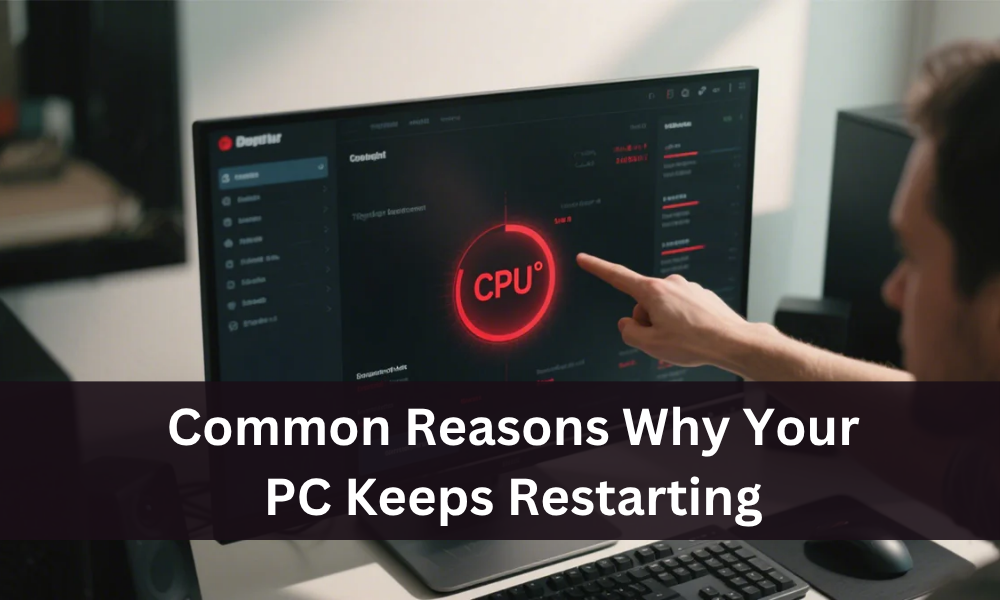
Random restarts of the PC rank among the most annoying problems users encounter. Whether during normal use, gaming, or before the BIOS screen appears, these interruptions disrupt workflow. Windows automatically restarts during updates, when applying system changes, or due to errors.
PC restarts without a warning signal, bigger problems beyond simple inconvenience. Left unchecked, this could damage hardware or lead to data loss. Most restart problems can be diagnosed and fixed without replacing the entire system.
Overheating
Computers overheating trigger automatic shutdown mechanisms to protect internal parts from damage. Excessive heat accumulates through dust buildup, inadequate airflow, malfunctioning fans, or elevated room temperature. CPU and GPU require proper cooling to avoid reaching unsafe temperature thresholds, where the system automatically initiates sudden restarts to avoid permanent damage.
Worn-out thermal paste, broken fans, and high ambient temperature contribute significantly. Free tool HWMonitor helps check internal temps—readings above 85°C consistently indicate urgent need for cleaning or better cooling solutions. Gaming puts lot of stress on PC’s parts and makes them hotter than during normal use. Improve case’s airflow by adding more fans or opting for case with better ventilation. Ensure CPU and GPU have proper thermal paste application and that their coolers are functioning correctly. Consider upgrading to more efficient CPU cooler or all-in-one liquid cooler to handle intense gaming sessions. Professional pc cleaning service can also prevent overheating issues effectively.
Power Supply Issues
A poor power supply unit creates power limitations causing game crashes and unexpected shutdowns. Game systems demand more power than portable ones due to powerful internal hardware components, including graphics cards and many-core CPUs. When PSU fails to output sufficiently high power level, the computer will turn off when subjected to extreme or peak power output demands.
Online PSU calculator determines the power PC needs by analyzing installed parts and estimating minimum wattage requirements. Replace the inadequate current PSU with a higher-wattage unit from a well-known brand. A failing power supply unit causes instability across the entire system through inconsistent voltage, producing random shutdowns or restarts during high-load tasks. Try using a different wall outlet, or unplugging surge protectors and faulty extension cords.For complex issues, Computer Troubleshooting experts can provide guidance.
Software Conflicts and Driver Issues
Software conflicts involving driver problems, malware, viruses, and incompatible programs trigger random restarts. Fix requires ensuring drivers stay up-to-date through running full system scan with an antivirus program. Identify recently installed programs causing problems and perform clean boot to find source of the problem.
Outdated or corrupted drivers prevent smooth communication between hardware components, resulting in improper shutdowns. Updating drivers ensures compatibility with the latest operating system updates and fixes known issues. If restart happens shortly after updating GPU, network, or chipset drivers, roll back the update via Device Manager. Download exclusively from the official website and avoid third-party tools.
Faulty Hardware Components
Faulty hardware components like improperly working RAM or failing power supply unit produce system shutdowns. When a hardware issue becomes the cause, attempt to remove RAM modules and replace them, then test the computer with one chip at a time. Before reaching BIOS logo, hardware-related failures occur during POST (Power-On Self Test). Possible causes include loose RAM or GPU, reseat components properly.
Damaged motherboard shows bulging capacitors or burnt areas. Power problems emerge when weak PSU cannot provide enough initial power. Incorrect BIOS settings with overclocked memory or voltage tweaks trigger restart loops. Clearing CMOS by removing battery for 30 seconds or using the clear CMOS jumper on the motherboard resolves configuration issues. Unplug USB devices since faulty peripherals interfere with POST.
Windows Updates and System File Corruption
Pending or failed updates create restart loop situations. While updates often resolve compatibility issues, they sometimes generate shutdown loops when not completed properly. Navigate through Start, Settings, then Windows Update to check for updates, then install available updates. Address pending update issues promptly. Monitor update status regularly to prevent accumulation of failed updates that compound problems.
Use System File Checker (SFC scan) in Windows to check and repair corrupted system files. Search for Command Prompt in Start menu and open app as administrator. Type sfc /scannow and press Enter. If SFC reports errors indicating it found corrupt files but couldn’t repair them, use DISM tool. Open Command Prompt as administrator, type DISM.exe /Online /Cleanup-image /Restorehealth, and press Enter. This command requires internet connection as it may download files from Windows Update.
Malware and Viruses
Malware and viruses generate conflicts alongside driver problems and incompatible programs, all producing random restarts. Computer infections cause Windows to reboot automatically. Scan using Windows Defender: search Windows Security in Start menu and open app. Select Virus protection, click Quick Scan to check for threats.
Perform deep scan through Scan options, choosing Full Scan, then clicking Scan now. Some variants delete system files, leading to Windows errors or boot failures. Tools to clean system include Malwarebytes for deep scans, Windows Defender Offline Scan, or AdwCleaner for browser-related malware. Always scan in Safe Mode with Networking for better results.
Graphics Card Issues
The graphics card represents the most important feature when playing games. Any interference with card will cause sudden stops. Updating GPU driver from the manufacturer’s website and installing current one prevents crashes and instability from corrupt or antiquated drivers.
When problem persists after installing latest driver updates, hardware failure becomes likely. Components of graphics card are known to break, typically accompanied by abnormal images displayed on screen, flickers, or the screen going on and off repeatedly. For such scenario, have card fixed or new one installed. Test with an alternative card when possible to confirm the diagnosis before replacement.
Disabling Automatic Restart
Disabling automatic restart prevents reboot loops caused by system failure during shutdown process. Press Windows key plus R, type sysdm.cpl, press Enter. Go to Advanced tab, locate Startup and Recovery, click Settings, then uncheck Automatically restart under System failure.
Click OK and restart computer to let changes take effect. By default, Windows automatically restarts after system failure, which hides blue screen of death (BSOD) and its error message. PC will stop and show full error instead of rebooting immediately. This reveals specific error codes for targeted troubleshooting instead of endless restart cycles.
Disabling Fast Startup
Fast startup feature allows computer to startup faster after shutdown, but sometimes this feature may restart system instead. Search Control Panel in Start menu and open app. Navigate to Hardware and Sound, then Power Options. Click “Choose what power buttons do” from left pane, then select “Change settings” that are currently unavailable.
Uncheck “Turn on fast startup” (recommended) under Shutdown settings, save changes, and shut down computer. Fast startup maintains hybrid power state rather than complete shutdown, which interferes with proper hardware initialization.
BIOS Settings and Issues
Improper BIOS configuration serves as contributing factor in system failures and can lead to unintentional reboots. Altered settings recently require reversal, retract changes and set everything back to prior configuration state. Reset BIOS: enter BIOS menu by pressing designated key (often F2, Del, or F10) during startup.
Navigate to Load Default Settings or Reset to Default option, select, save changes, and exit BIOS. For persistent issues, search for drivers on Web and upgrade board’s firmware. Updating BIOS constitutes dangerous operation, wrong execution can make computer defective. Overclocked memory or voltage tweaks trigger restart loops. Clearing CMOS by removing battery for 30 seconds resolves configuration conflicts.
Loose Hardware Connections
Loose hardware connections create instability. Improperly seated parts or disconnected cables mean PC might not start up and will keep restarting. Open PC case and ensure all parts, RAM, GPU, and CPU, are properly seated in their slots.
Verify all cables are securely attached to the motherboard ports and components, including power supply cables and SATA cables. Reseat memory modules by removing them completely then pressing firmly until retention clips engage. Graphics card requires similar treatment: remove from PCIe slot, inspect for debris, then reinstall with firm even pressure. Power connections especially critical, both 24-pin motherboard and 8-pin CPU power connectors must click into place. For complex setups, professional Wi-fi Setup and Computer Troubleshooting can prevent unnecessary restarts.
Using Event Viewer
Windows logs system crashes and shutdowns in built-in tool called Event Viewer. Press Win + R, type eventvwr, and press Enter. Go to Windows Logs, then System, and look for red Error or Critical messages near time of restart.
Pay attention to Event ID 41 (Kernel-Power), a common sign of abrupt shutdown. This tool helps pinpoint what’s happening and when these unexpected restarts occur. Filter by event source to isolate driver-related crashes versus hardware failures. Cross-reference error codes with Microsoft knowledge base for detailed explanations.
System Troubleshooting Steps
When computer keeps restarting, tackle issue methodically. Disconnect peripheral devices that are not necessary, like external drives, printers, and scanners, to isolate the problem. If a particular component is causing restarts, remove recently installed hardware and start computer with bare minimum.
Use hardware monitoring software to track temperature of computer. Run diagnostic tests: perform memory test using tools like MemTest86 to check for faulty RAM. Use built-in disk tools to scan hard drive for errors. Stress test CPU and GPU using tools like Prime95 and FurMark to identify stability issues.
Either update or roll back drivers, especially for the motherboard and graphics card. Use antivirus software to perform a full scan of the system. Perform a clean boot to get Windows to start up with only most important drivers and programs. Relying on certified computer repairs and mac repairs services ensures problems are diagnosed professionally.
Reset, Restore, or Reinstall
If none of the above solutions stop restarting, consider clean start. Three options exist: System Restore (which lets you go back to a point before things went wrong), Reset This PC (which will keep files but remove apps and settings), or Clean Install (which means start fresh by formatting the drive).
Always back up data before doing any of these operations. System Restore requires previously created restore point to function. Reset maintains personal files but removes all installed applications requiring reinstallation. Clean install provides freshest possible state but it demands a complete data backup since all partitions get wiped.
When to Call a Technician
Get help from professional technician if uncomfortable working on PC or if, after trying these steps, unable to fix problems. If computer restarts even before reaching BIOS screen, emits burning smells, or shuts off within few seconds after powering on, time to consider professional help.
These symptoms often point to deeper hardware issues, such as failing motherboard, power supply, or memory, that require specialized testing tools. May also want to consult technician if already replaced components and problem persists. Warranty coverage may apply for recent hardware purchases, making manufacturer service preferable to third-party repair.
Preventive Maintenance
Maintain the computer regularly to keep it running smoothly. Lower risk of restarts and other issues: keep the system clean, keep drivers and software updated, and ensure adequate airflow. Backing up important data regularly will help lessen damage if the system suddenly stops working. Regularly cleaning the interior of the computer, especially fans and vents, helps prevent overheating.
Always update drivers through official manufacturer websites and avoid using third-party driver updater tools. Using a surge protector provides an effective safeguard, especially in area with unstable electricity. Run antivirus scans at least once per month and keep the operating system fully updated to patch vulnerabilities. Little maintenance now can save from major headaches later.
Professional pc cleaning service ensures longer hardware life and fewer unexpected issues.