



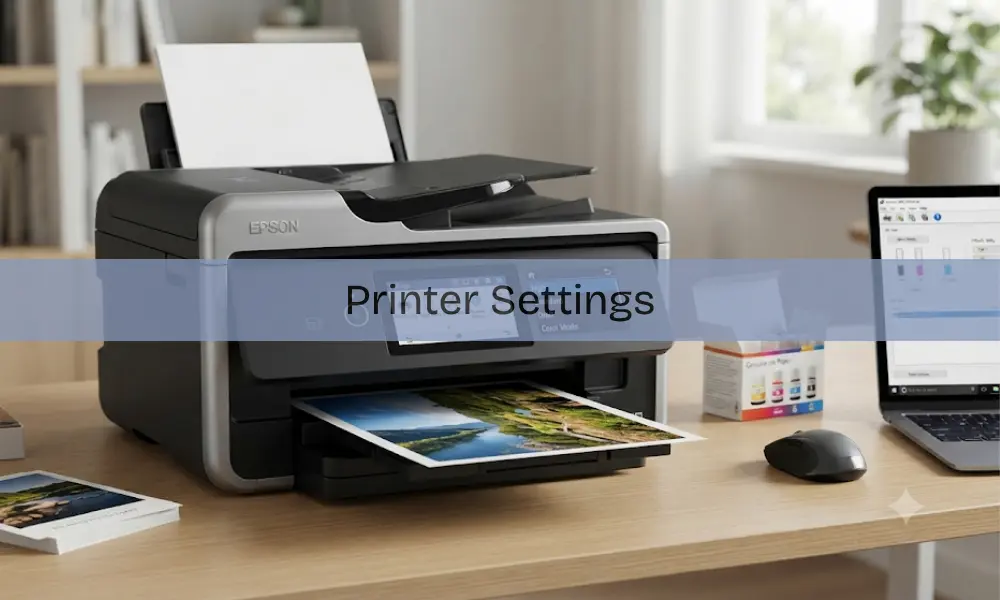
Ever stood in front of a printer, frantically pressing buttons while urgent documents pile up? That sinking feeling when the first page comes out either too faint, too dark, or completely sideways is universal. Here’s the thing! Understanding printer settings actually turns this mess into something manageable.
Getting Started with Print Setup
Print setup looks intimidating at first glance. Modern printers are loaded with features most people never touch, but honestly, learning just a few of them makes a massive difference.
The control panel is where everything happens. Some printers have physical buttons, others have touchscreens. Either way, this is where paper size, print quality, and color settings get adjusted. Small tweaks here change everything about the final output.
Settings printer configurations matter more than people think. Take paper type selection. It tells the machine how much ink to use. Glossy photo paper needs way less ink than regular office paper. Get this wrong, and even a $500 printer spits out garbage.
Connecting Hardware to Computing Devices
So, how do you connect a printer to a laptop? It really depends on what connections are available. Most people go wireless these days because nobody wants cables everywhere. Wireless setup means both devices need the same network.
Modern printers have built-in Wifi Setup that walks through each step. The printer screen shows available networks, type in the password, and that’s pretty much it. USB connections still work great for anyone who wants reliability over convenience.
Plug the cable into both devices and newer systems usually handle driver installation automatically. No wireless hiccups to worry about either. Bluetooth is another option, mostly for printing from phones. It’s slower than WiFi but works without needing a full network setup, which is handy for quick photo prints.
Getting Initial Configuration Right
Learning how to set up new printer hardware properly saves trouble down the road. That first unboxing matters more than it seems. Start by pulling off all the protective stuff like tape, foam, plastic bits keeping parts secure during shipping.
Then install ink cartridges or toner. Most cartridges now have color-coded instructions that make it pretty foolproof. After that comes alignment. Most printers run a test page automatically during printer setup to calibrate color and positioning. Skip this and text comes out crooked or colors look off.
Driver installation wraps up the technical side. Operating systems include basic drivers, but grabbing manufacturer-specific software from their website unlocks better features. These usually come with maintenance tools and ink monitoring.
Getting Software and Drivers Installed
Installing a printer isn’t just about plugging stuff in, but software matters just as much. Modern systems make this easier than it used to be, though knowing the process helps when things go sideways.
Windows has plug-and-play that finds new hardware on its own. Still worth checking the manufacturer’s site for latest drivers though. Those downloads often include scanning apps and maintenance utilities that add useful functionality.
Mac users usually have it easier because Apple keeps a huge driver database. The system spots connected printers right away and adds them to the device list. Older models might need apps from the App Store, kind of like when computer repairs are needed for compatibility problems.
Dealing with Common Issues
Understanding how to work a printer goes past basic operation into fixing what breaks. Paper jams, connection failures, and quality problems pop up constantly.
Paper choice actually matters a lot. Too thick, too thin, or loaded wrong causes jams every time. Those paper guides in the tray need to match the paper size exactly. Too loose and sheets go in crooked, too tight and nothing feeds.
Connection problems usually come from router location or wireless interference. When my printers disappear from device lists, checking network status is step one. Restarting the router and printer fixes most temporary glitches. Stubborn problems might need professional Laptop Repairs.
Quality issues typically mean wrong settings or overdue maintenance. Picking “draft” mode instead of “best” quality gives disappointing results. Clogged print heads or low ink wreck output no matter what settings say.
Advanced Settings for Better Results
Digging into printer settings reveals options most people never find. Color management, resolution tweaks, and paper handling settings offer real control over printing.
Resolution determines detail level, measured in dots per inch. Higher DPI makes sharper images but burns through ink faster and takes longer. Text documents look fine at 300-600 DPI. Photos need 1200 DPI or more.
Color profiles tell the printer how to handle color data. Different papers absorb ink differently, so matching profile to paper type prevents washed-out or too-bright results. Standard profiles work fine for everyday stuff.
Two-sided printing cuts paper use in half and looks more professional. Automatic duplex does everything itself. Manual duplex stops halfway through and asks to flip pages. Setting duplex as the default for regular documents makes sense.
Ready to stop fighting with printers? Spend fifteen minutes exploring printer setup options today, it beats hours of frustration later.
Conclusion
Mastering your printer settings isn’t as complicated as it seems, it just takes a little time and patience. Once you understand how paper type, print quality, and connectivity work together, printing becomes effortless and frustration-free. From setup to troubleshooting, every small adjustment can make a big difference in performance and print quality.
So, don’t wait until your next printing disaster, take a few minutes today to explore your printer’s features, tweak the settings, and see how smooth the process can be. Start mastering your printer today and print like a pro!